[Workshop] Create a small platformer game with Godot
12. November 2026
This are the notes to my Godot Engine workshop at SFSCON 2026. The goal of the workshop is to learn the basics of the Godot Engine.
Note: the workshop won't be recorded. But I might create a separate video for this workshop, or simply extend this notes with more text.
Godot Engine
- Since 2017 under MIT (no CLA!)
- Full engine with editor
- 2D and 3D
- Desktop, Mobile, Web
- GDScript, C# and C++
Setup
- Download Godot Engine from godotengine.org/download
- Clone the git repository from Codeberg at codeberg.org/dulvui/sfscon26-godot-workshop
Chapter 0 - The editor
Let's learn the basics about the editor.
- Unpack the downloaded Godot editor zip archive
- Click on the Godot editor
- Click import
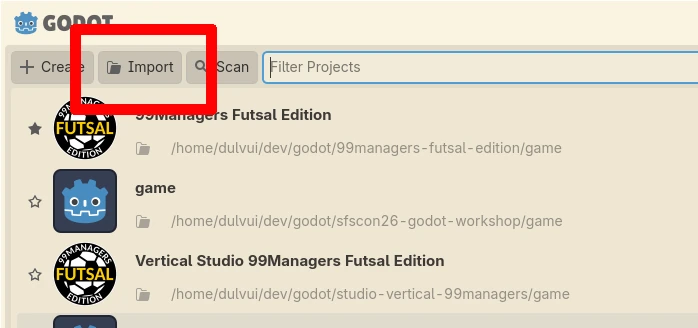
- Select sfscon26-godot-workshop/project.godot
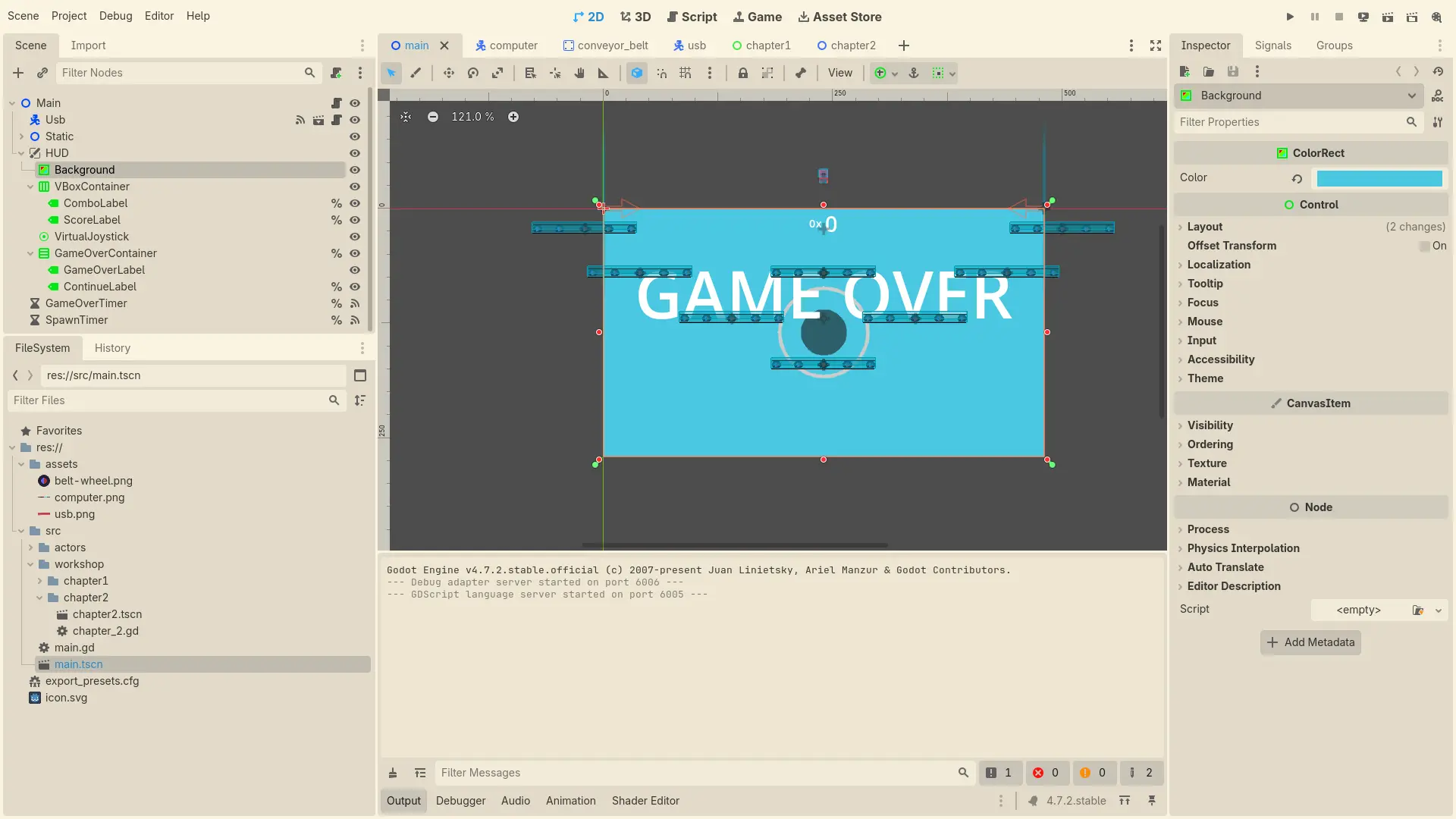
- Press F5 or click on the play sign located on the top right.
What is where?
Let's inspect the editor.
Chapter 1 - Scenes and Nodes
Let's explore Scenes and Nodes
- Open workshop/chapter_1/chapter_1.tscn Scene
- Click the Label in the scene tree
- Change the text in the inspector
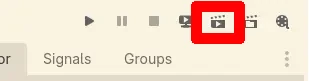
- Press F6 or click click "Run Current Scene" on top right
Chapter 2 - GDScript crash course
GDScript has a Python like syntax and supports dynamic and static typing.
- Open workshop/chapter_2/chapter_2.tscn
- Click on the little script icon
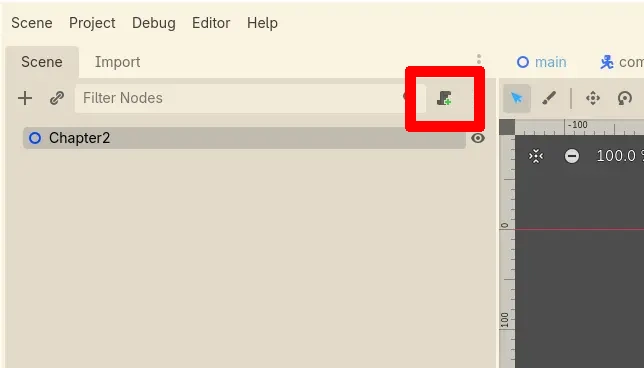
- Print "Hello World!" to the console
# Called when the node enters the scene tree for the first time.
func _ready() -> void:
print("Hello world!")- Press F6 or click click "Run Current Scene" on top right
- See "Hello world!" in the output console
Chapter 3 - The USB Stick
- Open workshop/chapter_3/chapter_3.tscn
- Run the current scene
- What happens?
Let's add a floor!
- Click Ctrl+a or right mouse click in scene tree to add a new Node
- Select StaticBody2D Tip: search for "static" in search bar
- Now add a CollisionShape2D to the StaticBody2D
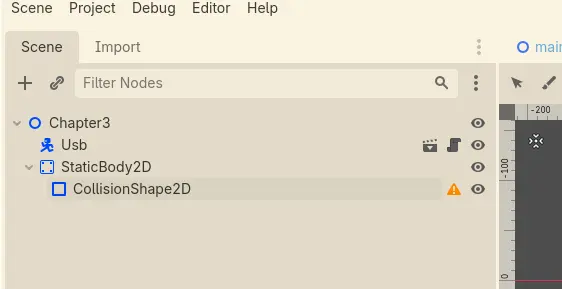
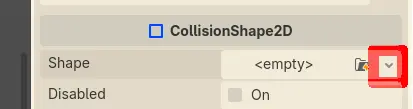
- In the inspector add a new Shape
- Move the StaticBody2D to the floor.
- Select WorldBoundaryShape
- Run the current scene again
- Try pressing the arrow keys!
Chapter 4 - The game loop
- Open workshop/chapter_4/chapter_4.tscn
- Drag a
src/actors/computer/computer_spawner.tscninto the scene - Run the current scene
- Try to jump on the computers and get hit by one
- You die :-)
Where's the loop?
- Select the USB Node in the scene tree
- Click the Signal tab near the inspector
- Click on the game_over() signal
- Click connect
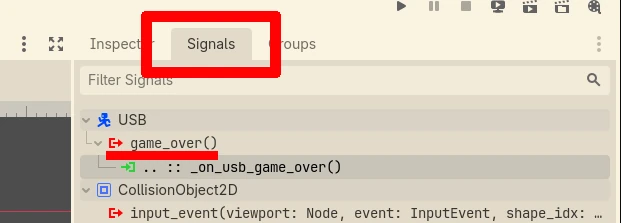
- Run the current scene again
You want more?
Great to hear ;-)
- Dynamic jump height. Currently all jumps are the same height.
- Save the highscore
- Save and show highscores ranking
- Add more computer types
- Add more computer levels
- ...whatever comes to your mind!
I recommend reading the official documentation and checking GDQuest for tutorials.
Every feedback is welcome
Feel free to write me an email at info@simondalvai.org
Exit through the gift shop
Buy my latest game on Steam to support my work.